A small project for learning RViz on a Mac.
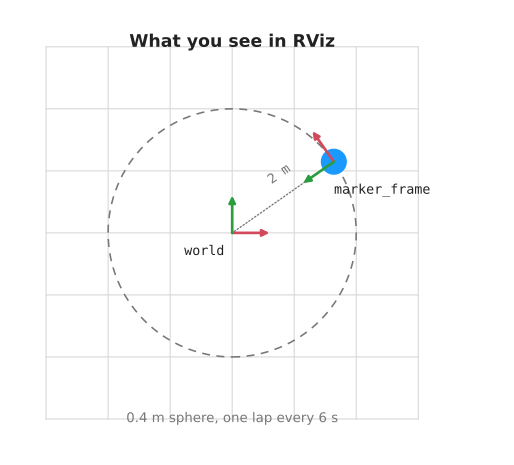
A blue ball moves in a circle. That is all it does. The point is to show how ROS keeps track of where things are, and how RViz draws them.
Contents#
- The problem this solves · What this example stands for · Frames: how a robot stores position · TF, short for transform: joining the frames · RViz, short for ROS Visualization: seeing it · The one idea to take away · Vocabulary
- How the pieces connect · The motion · Settings you can change
- How the code works · The whole thing in pseudo code · Working out where the ball goes · Setting up · One tick · The transform message · The marker message · Starting and stopping · End to end
- Running it · What to expect · Checking it works · Commands
- Working on the code · Layout · Adding to it
- Notes and gotchas
1. The problem this solves#
When you work with robots, you want to see what the robot is doing.
Where is the arm right now? Which way is the camera pointing? Did the robot go where you told it to go?
You cannot answer that from numbers scrolling past in a terminal.
ROS stands for Robot Operating System. The name is misleading. It is not an operating system. It is a set of libraries and tools for writing robot software. This project uses ROS 2, the current version.
ROS gives you three things that work together here:
- Topics carry data from one program to another.
- TF, short for transform, keeps track of where every part of the robot is.
- RViz, short for ROS Visualization, draws it on screen so you can look at it.
This project is a small working example of all three.
What this example stands for#
Here, a blue ball moves in a circle.
It stands in for a real robot doing the same kind of thing:
- a robot arm moving its gripper in a circle above a table
- a drone flying a loop around a tower
- a mobile robot driving one lap of a room
In each case, one part moves and the rest stays still. To draw that, you need two things about the moving part at every moment:
- where it is — its position
- which way it faces — its rotation
Together these are called a pose. A robot works out poses many times a second. This example does it 30 times a second.
Frames: how a robot stores position#
A robot does not keep one big list of positions. It keeps small relationships instead.
Take a robot arm:
- the gripper is 10 cm from joint 3
- joint 3 is 30 cm from joint 2
- joint 2 is bolted to the base
- the base sits somewhere in the room
Each part gets a frame. A frame is a point with three axes (X, Y, Z) stuck to one physical thing.
It is done this way so each part only has to know about the part next to it. The gripper does not need to know where the room is.
TF, short for transform: joining the frames#
A transform is where one frame is, compared to another. TF is the part of ROS that keeps track of them all. The name is just short for transform.
Each part reports one link, and only that link. The arm says where joint 3 is compared to joint 2. Nothing more.
TF adds the links together. So you can ask "where is the gripper in the room?" and get an answer, even though nobody wrote that down anywhere.
This example has two frames. world stays still. marker_frame moves.
RViz, short for ROS Visualization: seeing it#
RViz is a 3D viewer. It listens to what your programs send, and draws it:
- frames, as small red, green and blue arrows
- sensor data, as points
- shapes you add yourself, called markers — balls, arrows, lines, text
RViz does not run the robot. It only shows what the robot says.
That is worth remembering when the screen is empty. It usually means nothing is being sent, or you are looking from the wrong frame. It does not mean the robot is broken.
The one idea to take away#
You do not move the ball. You move the frame, and the ball goes with it.
The ball is a marker placed at (0, 0, 0) in marker_frame, and it stays there.
Every message says the same thing: a ball, in the middle of marker_frame.
What changes is where marker_frame is. TF moves the frame, and RViz draws the
ball in its new spot.
This looks like extra work for one ball. It is not. On a real robot, the 3D shape of each link is fixed to that link's frame, and never moves from it. Only the frame moves. Learn it here with one ball, and it costs you nothing later with forty parts.
Vocabulary#
| Term | Full name | Meaning |
|---|---|---|
| ROS | Robot Operating System | libraries and tools for robot software, not an actual operating system |
| node | — | one running program |
| topic | — | a named channel that programs send messages on |
| frame | — | a point with three axes, attached to one thing |
| transform | — | where one frame is, compared to another |
| pose | — | position and rotation together |
| TF | transform | the system that keeps track of frames |
| RViz | ROS Visualization | the 3D viewer that comes with ROS |
| marker | — | a shape you send so a person can see it in RViz |
| fixed frame | — | the frame RViz draws everything from (here, world) |
| rqt | ROS Qt | small windowed tools for ROS, run from make shell |
2. How the pieces connect#
One node sends two things. RViz reads both.
flowchart LR
    N["marker_publisher<br/>(one node, 30 times a second)"]
    N -->|"/tf<br/>where marker_frame is"| R["RViz"]
    N -->|"/visualization_marker<br/>a ball in marker_frame"| R
The frames:
flowchart LR
    world --> marker_frame
world stays still, and RViz draws everything from it. marker_frame moves.
The motion#
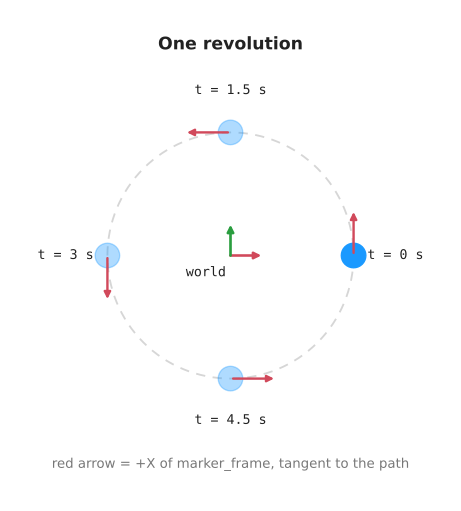
The circle is 2 metres from the middle. One lap takes 6 seconds. The frame turns as it goes, so its red arrow always points the way it is moving.
Settings you can change#
You do not need to edit any maths to change these. They are node settings:
| Setting | Default | What it does |
|---|---|---|
orbit_radius_m | 2.0 | how far out the ball sits, in metres |
orbit_period_s | 6.0 | seconds for one lap |
publish_rate_hz | 30.0 | updates per second |
marker_diameter_m | 0.4 | how big the ball is, in metres |
world_frame | world | name of the still frame |
marker_frame | marker_frame | name of the moving frame |
The _hz in that third name is short for hertz, which just means times per
second.
3. How the code works#
All of it lives in one file:
marker_publisher.py.
The snippets below are trimmed so they stay readable. Type hints and docstrings are left out, a few repeated lines are joined into one, and some comments are added. Open the file itself for the exact text.
The whole thing in pseudo code#
when the program starts:
    read the settings (radius, lap time, rate, frame names)
    get ready to send transforms
    get ready to send markers
    write down the time right now, as the start time
    ask ROS to call tick() 30 times a second

tick():
    seconds = time now - start time
    x, y, facing = where on the circle we are after that many seconds

    send a transform: "marker_frame is at (x, y), facing that way, inside world"
    send a marker:    "a ball, at the middle of marker_frame"

keep going until Ctrl-C
That is the entire program. The rest of this section is the real code behind each of those lines.
Working out where the ball goes#
def circular_orbit(
    elapsed_s: float, radius_m: float, period_s: float
) -> tuple[float, float, float]:
    angle: float = 2.0 * math.pi * (elapsed_s / period_s)
    # +pi/2 makes the frame's +X axis tangent to the circle, i.e. "forwards".
    return radius_m * math.cos(angle), radius_m * math.sin(angle), angle + math.pi / 2.0
elapsed_s / period_s is how far through the lap we are. At 3 seconds of a
6 second lap that is 0.5, or half way. Multiplying by 2 * pi turns it into
an angle, because a full circle is 2 * pi.
cos and sin turn an angle into a point on a circle. Multiply by the radius
and you have the position.
The third value is the facing, called yaw. Adding a quarter turn
(pi / 2) makes it point along the direction of travel instead of outwards.
That is the red arrow in the picture above.
There is no ROS code in this function at all. It takes three numbers and gives
back three numbers, and its first lines say so: each argument is a float, a
decimal number, and -> tuple[float, float, float] means it gives back three of
them together. The code in this project writes down the type of every value like
this, so that you can see what each one is without working it out. That is why it can be tested on its own, and why you can
replace it with any path you like.
Setting up#
self._tf_broadcaster: TransformBroadcaster = TransformBroadcaster(self)
self._marker_pub: Publisher = self.create_publisher(Marker, MARKER_TOPIC, 10)

self._start_time: Time = self.get_clock().now()
self._timer: Timer = self.create_timer(1.0 / rate_hz, self._on_timer)
Line by line:
- a broadcaster is the thing that sends transforms out on
/tf - a publisher sends messages on one topic; here, markers
- the start time is saved so we can work out how long we have been running
- the timer asks ROS to call
_on_timerevery1/30of a second
Nothing moves yet. This only sets things up.
One tick#
def _on_timer(self) -> None:
    now: Time = self.get_clock().now()
    elapsed_s: float = (now - self._start_time).nanoseconds * 1e-9
    x: float
    y: float
    yaw: float
    x, y, yaw = circular_orbit(elapsed_s, self._radius_m, self._period_s)

    self._tf_broadcaster.sendTransform(self._build_transform(now, x, y, yaw))
    self._marker_pub.publish(self._build_marker(now))
This runs 30 times a second, and it is where everything happens.
ROS clocks count in nanoseconds, so * 1e-9 turns that into seconds. Then the
maths above gives the position and facing, and two messages go out.
Both messages get the same now stamp. That matters. RViz matches them by
time, so a transform and a marker from the same tick belong together.
The transform message#
transform.header.frame_id = self._world_frame     # the parent frame
transform.child_frame_id = self._marker_frame     # the child frame
transform.transform.translation.x = x
transform.transform.translation.y = y
transform.transform.translation.z = 0.0
Read it as a sentence: marker_frame is at (x, y, 0) inside world.
The parent is the frame you measure from. The child is the frame being placed. Getting these the wrong way round is a common early mistake, and it puts things in mirrored positions.
Rotation is stored differently from what you might expect:
def yaw_to_quaternion(yaw: float) -> tuple[float, float, float, float]:
    return 0.0, 0.0, math.sin(yaw / 2.0), math.cos(yaw / 2.0)
ROS stores rotations as four numbers, called a quaternion, not as an angle. Four numbers avoid some nasty problems that three angles run into in 3D. Here the ball only spins flat, around the up axis, so only the third and fourth numbers do any work. You do not need to follow the maths to use it.
The marker message#
marker.header.frame_id = self._marker_frame   # drawn inside the moving frame
marker.ns = 'rviz_basics'
marker.id = 0
marker.type = Marker.SPHERE
marker.action = Marker.ADD
marker.scale.x = marker.scale.y = marker.scale.z = self._diameter_m
marker.color.a = 1.0
What each line does:
frame_idis the important one. The ball is drawn insidemarker_frame. Its own position is never set, so it stays at the middle of that frame.nsandidtogether are the marker's name tag. Send the same pair again and RViz updates that ball. Send a differentidand you get a second ball.typepicks the shape.SPHEREhere; there are also arrows, lines, text.actionis add or delete.scaleis the size in metres, on each axis.color.ais opacity. It defaults to0, which is fully see-through, so forgetting this line means a marker that is sent correctly and draws nothing.
The ball never changes. The same message goes out 30 times a second. That is on purpose: it costs almost nothing, and it means RViz gets a copy within a thirtieth of a second even if you open it long after the node started.
Starting and stopping#
def main(args: list[str] | None = None) -> None:
    rclpy.init(args=args)
    node: MarkerPublisher = MarkerPublisher()
    try:
        rclpy.spin(node)
    except (KeyboardInterrupt, ExternalShutdownException):
        pass
rclpy.init starts ROS for this program. rclpy.spin then sits there and runs
the timer, over and over, until you stop it. Ctrl-C stops it with a
KeyboardInterrupt, and a launch file stopping all its nodes stops it with an
ExternalShutdownException. Neither is an error here, so the program catches
both and ends. Ctrl-C has already stopped ROS by then, so there is nothing left
to shut down.
End to end#
sequenceDiagram
    participant T as timer, 30 times a second
    participant N as marker_publisher
    participant R as RViz
    T->>N: tick
    N->>N: work out x, y and facing for this moment
    N->>R: /tf — marker_frame is here, inside world
    N->>R: /visualization_marker — a ball in marker_frame
    R->>R: look up where marker_frame is now
    R->>R: draw the ball at that spot
Put together, one run looks like this:
make rviz.demostarts two programs: the node and RViz.- The node reads its settings and starts its timer.
- Every thirtieth of a second the timer fires.
- The node works out the position and facing for that moment.
- It sends a transform saying where
marker_frameis, and a marker saying to draw a ball insidemarker_frame. - RViz receives both. It keeps the transform in its frame tree and the marker in its list of things to draw.
- To draw, RViz asks TF where
marker_frameis compared toworld, its fixed frame. It puts the ball there. - On the next tick the transform is different, so the ball lands somewhere slightly different. Thirty times a second, that reads as smooth movement.
Step 7 is the whole idea. The ball never moved. The frame did.
4. Running it#
make rviz.demo
What to expect#
The first time you run this, it downloads ROS 2. That is a few gigabytes and takes a few minutes. After that, the build takes about a second, and RViz takes about ten seconds to open.
In the terminal:
[marker_publisher-1] [INFO] [marker_publisher]: Publishing TF 'world' -> 'marker_frame'
                            and markers on 'visualization_marker' at 30 Hz
[rviz2-2] [INFO] [rviz2]: Stereo is NOT SUPPORTED
[rviz2-2] [INFO] [rviz2]: OpenGl version: 2.1 (GLSL 1.2)
Those last two lines look like problems. They are not. They are normal on a Mac. They are RViz reporting which graphics features it found.
In the window you should see:
- a dark grid
- a blue ball going round once every six seconds
- small red, green and blue arrows moving with the ball
On the left, the Displays panel lists Grid, TF and Marker. None of them should have a warning triangle.
Press Ctrl-C in the terminal to stop everything.
Checking it works#
Leave make rviz.demo running. In a second terminal:
make rviz.check
It lists the topics, then prints one marker and one transform. You should see
/tf and /visualization_marker in the list, type: 2 on the marker, and
numbers on the transform that differ each time you run it.
If that all works but RViz stays empty, check the Fixed Frame. It must be set to
world. You will find it in RViz under Global Options.
Commands#
This area has two commands:
make rviz.demo     build, then start the node and RViz
make rviz.check    show what it is publishing (run the demo first)
Everything else is repo-wide, and works the same for every area:
make build     rebuild after you change code
make test      run the tests
make lint      check code style
make shell     a shell with ROS ready, for typing ros2 commands
Run make on its own for the full list, including the other areas.
5. Working on the code#
Layout#
The repo is split into areas. This is the rviz one:
docs/
  rviz/overview.md                     this file
  diagrams/rviz.py                     redraws the pictures in it
  images/rviz/                         scene.svg, motion.svg
src/rviz_basics/
  rviz_basics/marker_publisher.py      the node
  launch/marker_demo.launch.py         starts the node and RViz together
  rviz/marker_demo.rviz                the saved RViz layout
  test/                                the tests
Every area follows that shape: one package under src/, one folder under
docs/, and its pictures under docs/images/<area>/.
Adding to it#
Add a node. Put a new .py file in rviz_basics/. Add a line for it in
setup.py under console_scripts. Run make build.
Add a package. Make a folder src/<name>/ with its own package.xml and
setup.py. make build will find it on its own.
Add a ROS library. Put ros-jazzy-<name> in pixi.toml, and the plain name
in package.xml.
Change the motion. circular_orbit() in marker_publisher.py takes a time,
a radius and a lap length, and gives back a position. It has no ROS code in it,
so you can swap it for any path you like and nothing else changes.
If you change the radius or the lap time, redraw the pictures in this file:
pixi run python ../docs/diagrams/rviz.py
6. Notes and gotchas#
pixi is the tool that installs everything and pins the versions. RoboStack is the collection of ROS 2 packages it downloads from. There is no official ROS 2 build for macOS, which is why RoboStack is needed at all.
Nothing is installed onto your system. It all sits in .pixi/ inside this
folder. make clean, then deleting that folder, removes every trace.
Python 3.12, setuptools below 80, and pytest below 8 are pinned on purpose. If
you raise any of them, the build breaks. The reasons are written down in
pixi.toml.
From make shell you can run the rqt tools, such as rqt_graph for a picture
of the nodes and topics. Closing one prints an error as it exits. That is a bug
in rqt on macOS. You can ignore it.
Keep pixi.lock in git. It is what lets someone else end up with the exact same
setup as you.
Next area: position, frames and transforms, which works out the maths this one takes for granted, on a two-joint robot arm.